
Audio experience
An audio experience allows visitors to listen to your written content which combines an audio player and audio track generated from the JWX Studio.
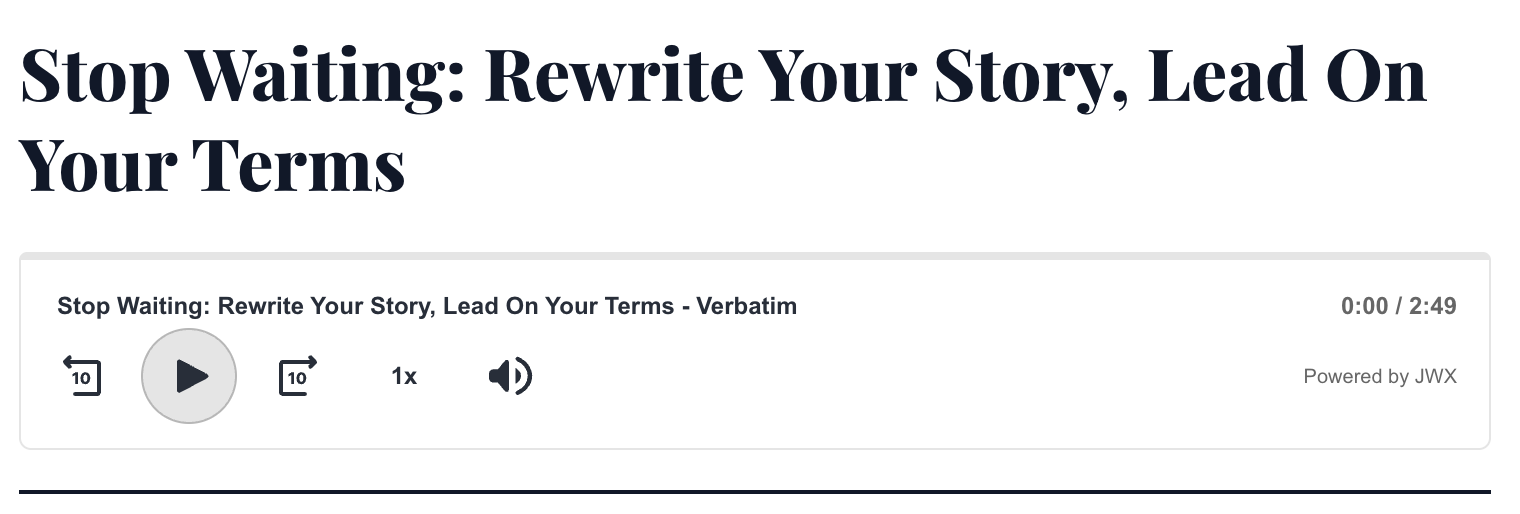
Audio placement under an article title
To implement an audio experience, you must:
- Create JWX Studio article-to-audio projects, tailored to read your article verbatim or use prompting to create a unique summary
- Setup a Dynamic Strategy Rule (DSR) strategy with an Audio Experience
- Embed a DSR rule placement with the KVPs matching the JWX Studio project
Prerequisites
| Item | Description |
|---|---|
| Placement ID | Unique identifier for the placement Follow these steps to obtain the placement ID:
|
| JWX Studio | JWX Studio enabled on your account with an existing project |
| Article ID | Unique identifier for the article Follow these steps to obtain the article ID:
|
Set up an audio experience
To set up an audio experience, you must create an audio experience and define the key for retrieving Studio media.
Create an audio experience
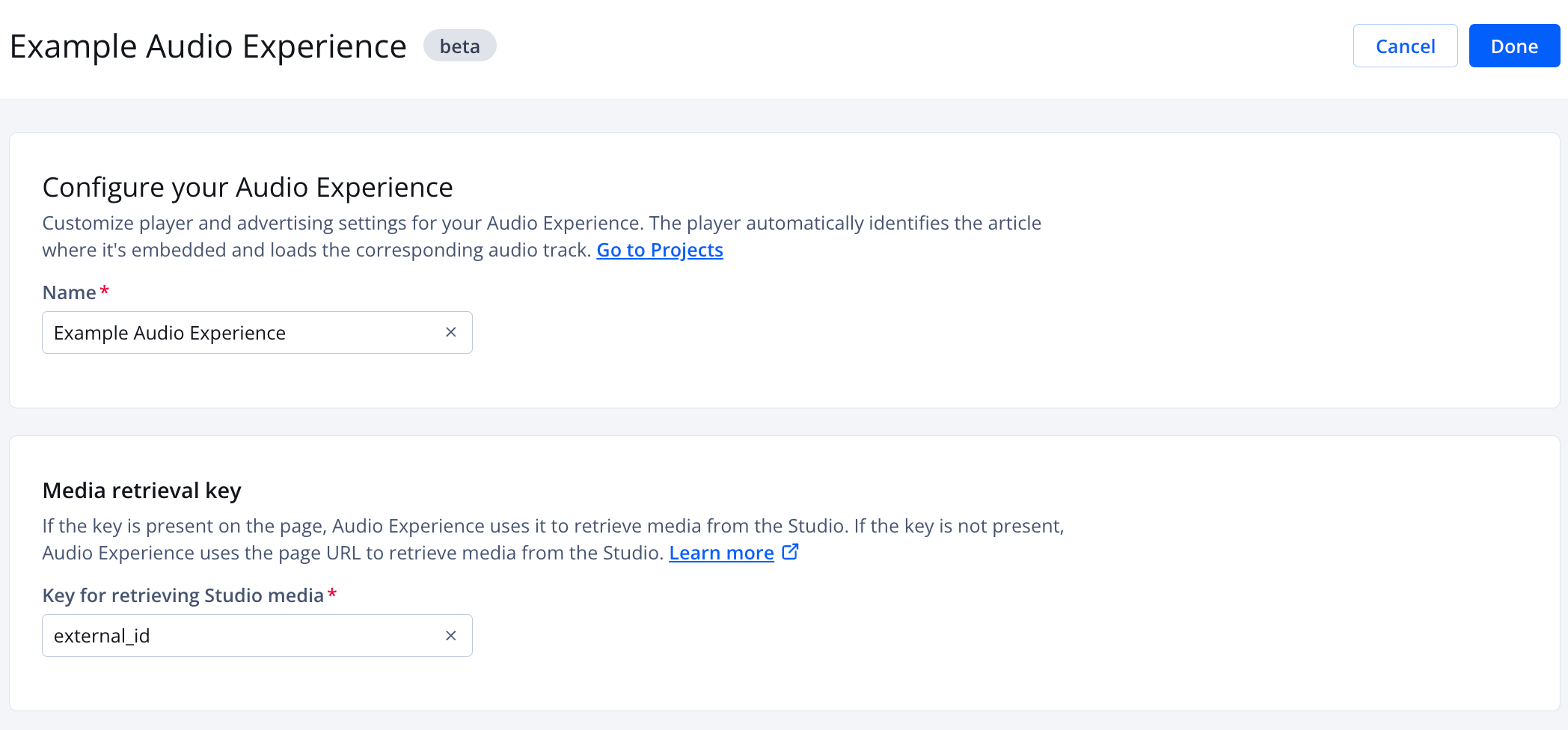
Audio experience creation page
Follow these steps to create an audio experience:
- On the strategy tree, click + Add experience > Audio experience. The audio experience creation page appears.
- Under Configure your Audio Experience, enter a Name. This will appear as the identifier of the node in the decision tree.
- (Optional) Under Media retrieval key, enter the Key for retrieving Studio media.
This key must be the same key used to set custom data for the Dynamic Strategy Rule placement. JWX uses this key to match a value from the page to the External ID in JWX Studio.
By default, this field is set to external_id.
- Click Done.
Define the key for retrieving Studio media
To learn more about adding custom data to a placement, see Provide custom data to a placement.
On the article page (on your site), set a key-value pair for your Dynamic Strategy Rule placement using one of the following methods.
If you use the
jwDataStorecode, this client-side code must occur before the placement embed script loads the player.
// Append the following query parameter to the placement embed script.

?&custom.<placement-id>.<key>=<value>
<div
    id="jwp-placement-1"
    data-jw-placement-id="<placement-id>"
    data-jw-<key>="<value>">
</div>
const jwDataStore = window.jwDataStore || { custom: {} };
jwDataStore.custom.<placement-id> = { <key>: "<value>" };
window.jwDataStore = jwDataStore;
| Placeholder | Description |
|---|---|
<placement‑id> | Unique identifier for the placement |
<key> | Key for retrieving a JWX Studio media This value should always be external_id, unless explicitly instructed otherwise by your JWX representative. |
<value> | JWX Studio article ID Example: my-article-123456 |
Updated 5 days ago